Claude Desktop MCP Server Configuration: The Easy vs. Secure Way




Anthropic created both Claude and the Model Context Protocol (MCP), which makes Claude Desktop one of the most capable MCP clients available today. But connecting MCP servers to Claude isn’t one-size-fits-all. The deployment type you choose — and the configuration method you use — has meaningful implications for security, scalability, and operational control.
This post covers:
- the three types of MCP server deployments
- two methods for configuring them in Claude Desktop
- what governance capabilities you should expect when deploying MCP at scale in Claude
Understanding MCP Server Deployment Types for Claude Desktop
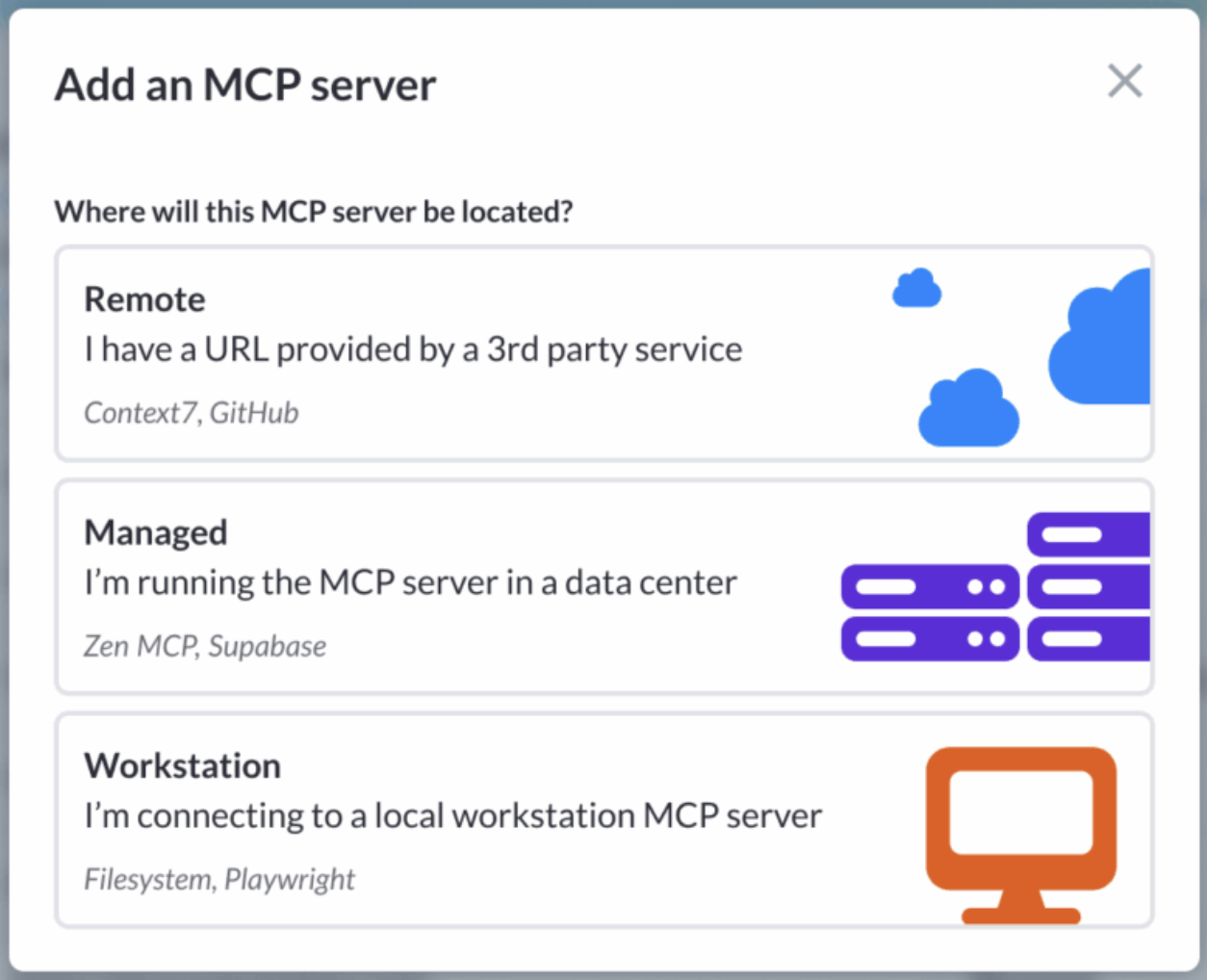
I’ll go ahead and assume you know what MCP servers are and how they connect external data and capabilities to AI. So, let’s go a layer deeper and discuss the three MCP server deployment options that you have: remote, managed, and local (workstation) MCP servers.
1. Remote MCP Servers
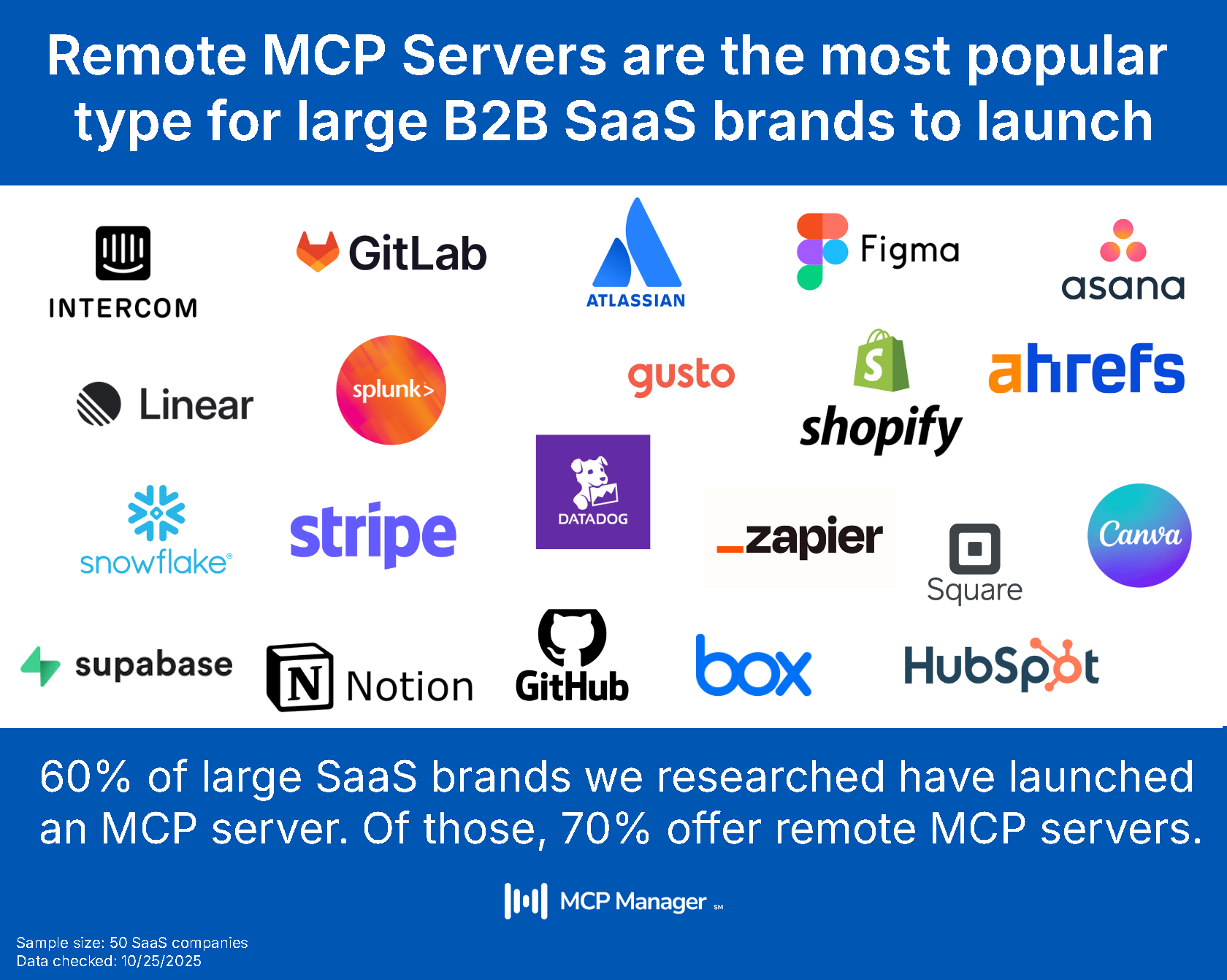
Remote MCP servers are the most common deployment type, particularly among large SaaS vendors. Atlassian’s MCP server connects AI to Jira and Confluence, for example.
Configuration is straightforward: you copy the server’s URL and paste it into your MCP client — in this case, Claude Desktop. After completing an OAuth flow (assuming the server offers one) the server is connected.
Because remote MCP servers are hosted externally and accessed over the network, they don’t require local machine configuration. That makes them the easiest to set up and the easiest to scale.
2. Local (Workstation) MCP Servers
Local MCP servers run on the user’s machine and are typically used when the server needs direct access to local files. Playwright is a common example. These servers are configured by editing Claude Desktop’s config file directly, which introduces complexity — especially when rolling out to multiple employees or teams.
Local deployments also carry distinct security considerations: because they can access files on the host machine, access controls and scoping become critical.
3. Managed MCP Servers
Managed MCP servers are a deployment pattern developed by MCP Manager. The concept: take a local MCP server, containerize it, run it in a sandbox environment, and serve it like a remote MCP server.
The result is a deployment that combines the functionality of a local server (without needing to access local device files) with the reliability, uptime, and simplified configuration of a remote server. For teams that want the capabilities of a local server without the configuration overhead or local file access risks, managed deployments are worth considering.
Two Ways to Configure MCP Servers in Claude Desktop
Method 1: Direct Configuration (Easy, but Limited)
The simplest way to connect a remote MCP server to Claude Desktop is through the built-in connector interface. From the chat area, click the + button, navigate to Connectors > Manage Connectors, and either select a server from the library or add a custom server URL manually.
For example, to connect Atlassian or Asana’s remote MCP server, you’d search for it in the library or paste the URL directly. After completing the OAuth flow, Claude Desktop is connected to the server.
This method works well for individual users. However, it does not provide any visibility into how the server is being used, what data is being passed, or who is accessing what. For teams deploying MCP across multiple employees or business units, this approach quickly becomes unmanageable.
Method 2: Via an MCP Gateway (More Secure, More Control)
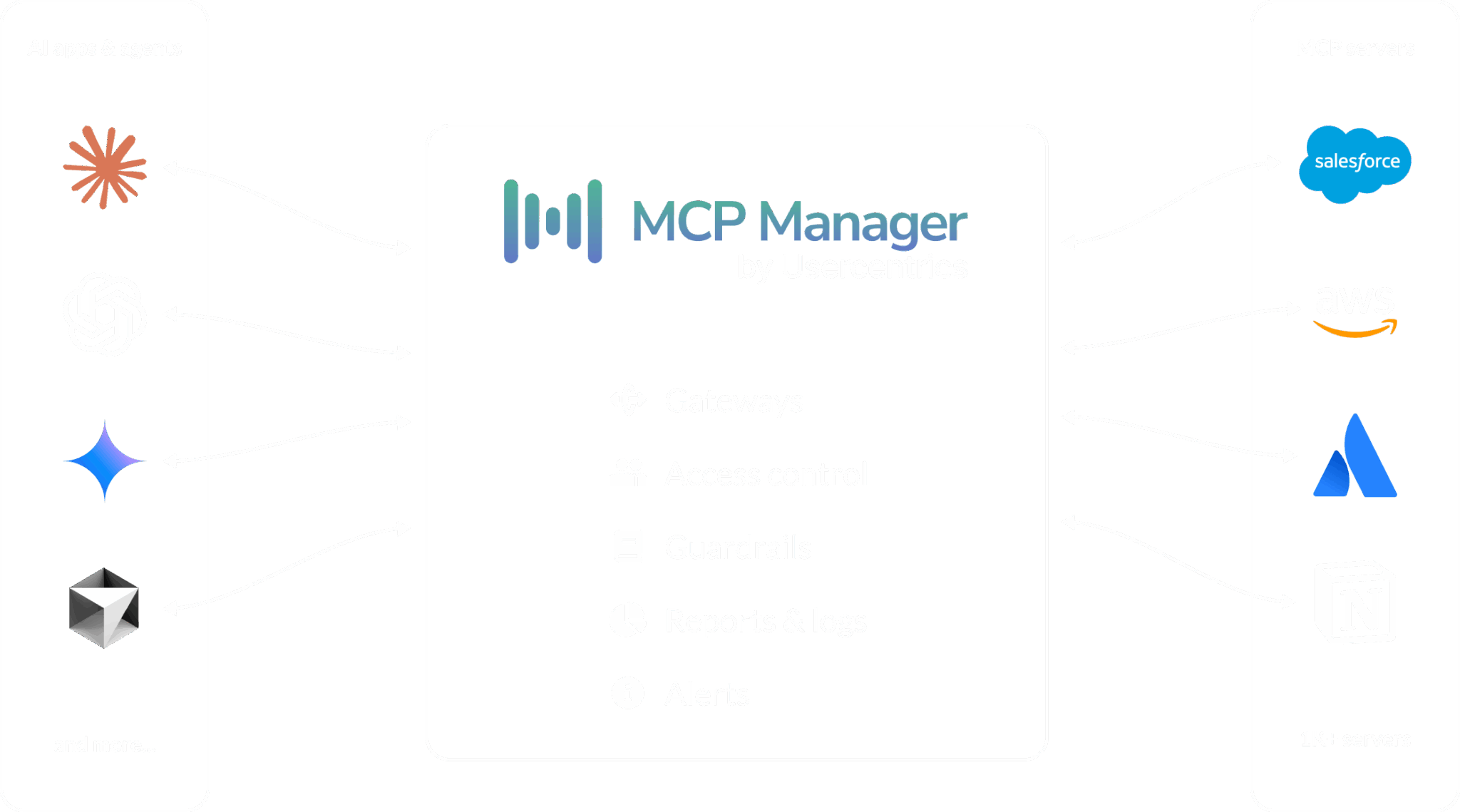
For teams deploying MCP at scale, an MCP gateway adds the operational layer that Claude Desktop does not provide natively: audit logging, access controls, runtime guardrails, PII detection, and centralized server management.
MCP gateways provide a central layer to monitor and control data flows:
In addition, MCP gateways help prevent MCP security risks, such as:
- MCP rug pull attacks
- data exfiltration
- MCP prompt injection
- Tool poisoning
Not sure what an MCP gateway is? We cover that in the video below.
Here’s how the workflow looks using MCP Manager:
- Add servers to your internal registry. MCP Manager maintains a central registry of approved MCP servers. You add the servers your teams are authorized to use and complete OAuth flows per server — ensuring that Claude can only access what the authenticated user is permitted to access.
- Create a gateway. A single gateway can include multiple MCP servers. This means instead of configuring each server individually in Claude Desktop, you provision one gateway URL per team or use case — for example, a gateway for marketing, one for engineering, one for QA.
- Paste the gateway URL into Claude Desktop. The configuration step is identical to connecting a single remote server. Claude Desktop connects to the gateway, which in turn routes requests to all the servers provisioned within it.
- Monitor and govern in real time. Once traffic flows through the gateway, MCP Manager provides end-to-end audit logs with verbose contextual metadata, usage dashboards, and policy controls you can update in real time.
It’s worth noting that MCP Manager supports remote, local, and managed MCP servers within the same gateway, giving you flexibility to mix deployment types under a single governed endpoint.
Want to try it? MCP Manager offers a 2-week free trial where you can explore how MCP gateways make MCP deployments more secure.
Which Method Should You Use? (+ Video Demo)
If you’re an individual user experimenting with MCP, direct configuration in Claude Desktop is perfectly adequate. It’s fast and requires no additional tooling.
If you’re an AI engineer or IT team deploying MCP across an organization, direct configuration is a liability. Without a gateway layer, you have no audit trail, no centralized access controls, and no way to enforce policies around what your AI systems can do with connected services.
The gateway approach adds one small configuration step upfront and returns significant operational leverage: team-scoped provisioning, runtime guardrails, and the audit visibility that enterprise environments require.
Video Demo of Setting Up MCP Servers in Claude
The video below goes over the different server types (which we addressed above) and also shows you how to configure MCP servers directly in Claude or with an MCP server.
Final Thoughts: Taking MCP from Experimentation to Production: Know
Claude Desktop supports three MCP server deployment types: remote, local, and managed. Each server type offers different configuration requirements and security profiles.
For teams moving beyond individual use, an MCP gateway provides the governance layer that MCP alone does not offer: centralized control, audit logging, PII detection, and scalable provisioning across teams.
Without a centralized layer, MCP offers a tangled web of connections at scale. If you’re wanting to take MCP from experimentation to production, you’ll need the visibility and control that MCP gateways offer.
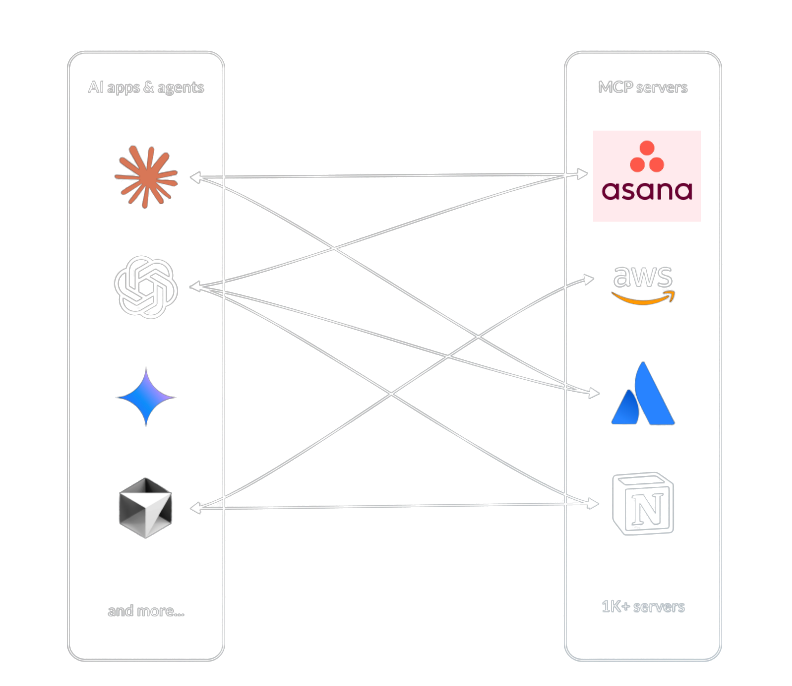
TL;DR: you want to securely deploy MCP at scale, then explore an MCP gateway.