Asana MCP Server: Tutorial, Use Cases, and Best Practices




Asana just released a major upgrade to their MCP server AND they’re deprecating V1 entirely by May 11, 2026.
In this guide, I’ll walk you through three ways to connect Asana’s V2 MCP server to Claude Desktop, explain why the upgrade matters, and show you a real-world workflow where Claude reads Notion project notes and finds corresponding Asana tasks within just one simple prompt.
How MCP Will Change How You Work in Asana
Before we dive into setup, let’s quickly cover what MCP actually does.
Model Context Protocol (MCP) is the standard way for AI systems to connect to external tools and data. Think of it as a universal connector that lets AI models like Claude directly read from and write to your work tools (whether those tools are Asana, Notion, GitHub, or Jira).
MCP Connects AI to External Tools & Data:
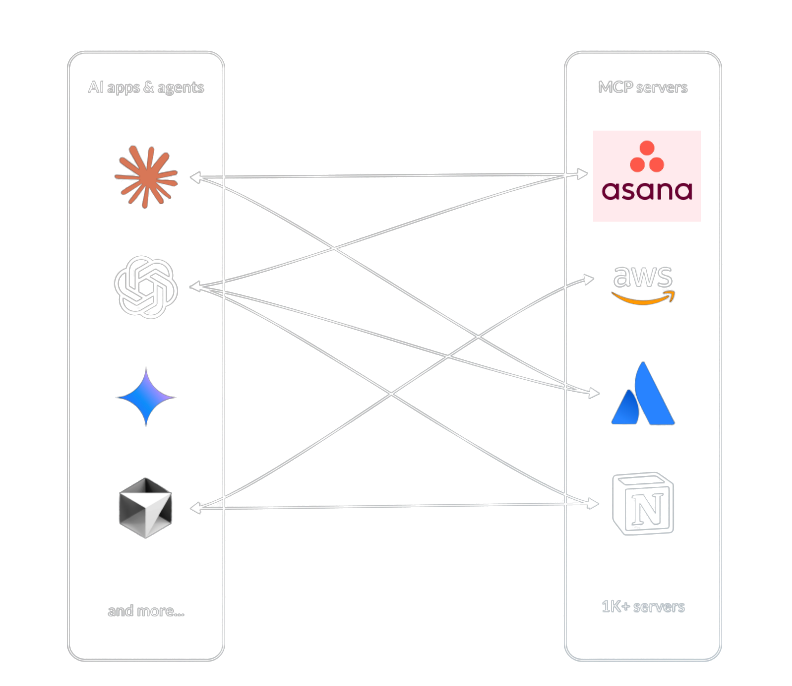
Instead of working directly in your SaaS apps, MCP allows you to actually accomplish work directly in your LLM or even set up AI systems that accomplish tasks for you. Gone are the days where we’ll update an Asana board directly in Asana. Instead, we’ll be able to assign tasks, create subtasks, and manage projects directly in our LLM. Best of all, your AI agents and systems can access more than one MCP server at at time. So, you don’t even have to switch back and forth betweeb tools.
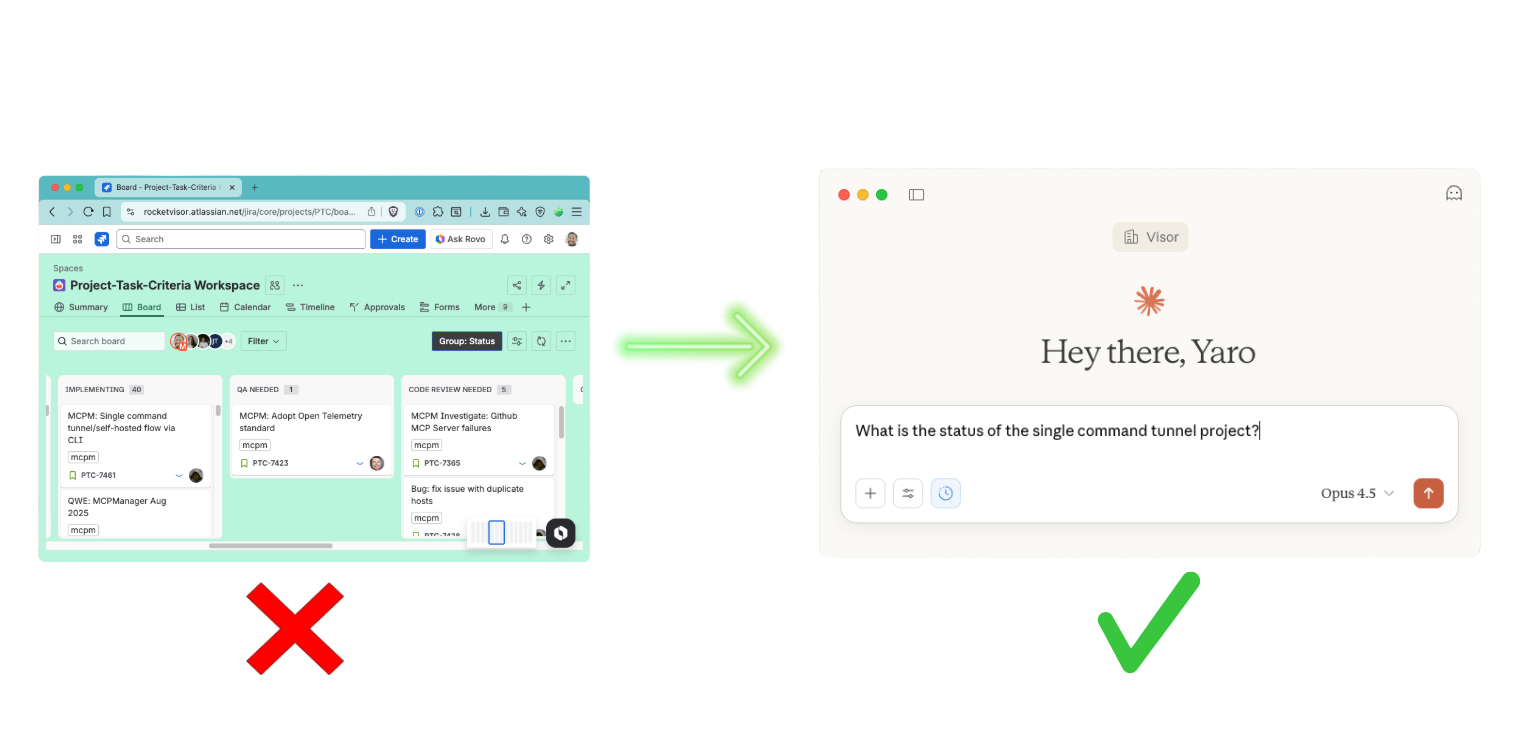
Examples of work you’ll be able to do in your LLM:
- Ask Claude to create subtasks in Asana
- Assign work to coworkers
- Update task statuses
This isn’t just a convenience upgrade; it’s a fundamental shift in how we’ll work moving forward. AI has left the station and it is here to make us more productive.
Why Asana Upgraded Their Remote MCP Server to V2 (and Retired V1)
Asana’s V1 MCP server used Server-Sent Events (SSE), an older architecture that was complex, clunky, and less reliable. V2 of Asana’s MCP server launched in February 2026 and uses streamable HTTP, which is now the preferred standard for remote MCP servers. We’ve seen other popular SaaS brands upgrade to streamable HTTP before too, such as Atlassian’s remote MCP server in late 2025.
(By the way, remote MCP servers are the most popular MCP deployment type for SaaS companies to release because they are the easiest for users to set up.)
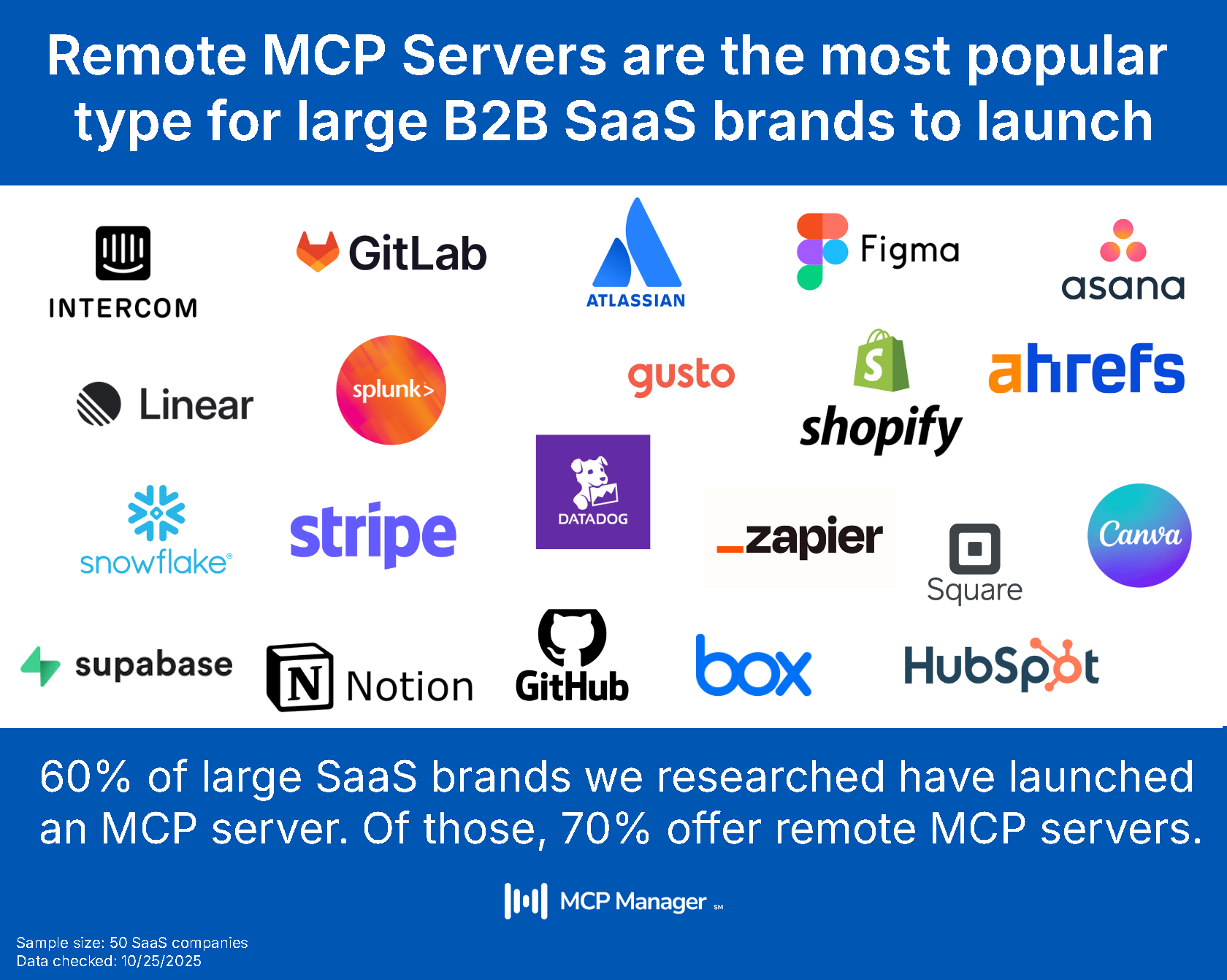
TL;DR: Asana’s V2 MCP server brings more reliability, less technical complexity, and more compatibility with MCP clients.
The URL for Asana’s V2 MCP Server:
Since V1 of Asana’s MCP will be completely unavailable after May 2026, upgrading now ensures you won’t experience any disruption.
How to Connect Asana’s MCP Server to Claude Desktop (3 Methods)
There are three main ways to connect Asana’s V2 MCP server to Claude. I’ll walk through each option, starting with the simplest and ending with the most secure. You can also see how to do so in the video below. (Timestamps are included in the video’s description on YouTube.)
Method 1: Direct Connection via Custom URL
This is the fastest way to get started, though not the most secure option for teams.
- Step 1: Get Asana’s MCP server URL from their documentation: https://mcp.asana.com/mcp
- Step 2: In Claude Desktop, click on Connectors and then Manage connectors
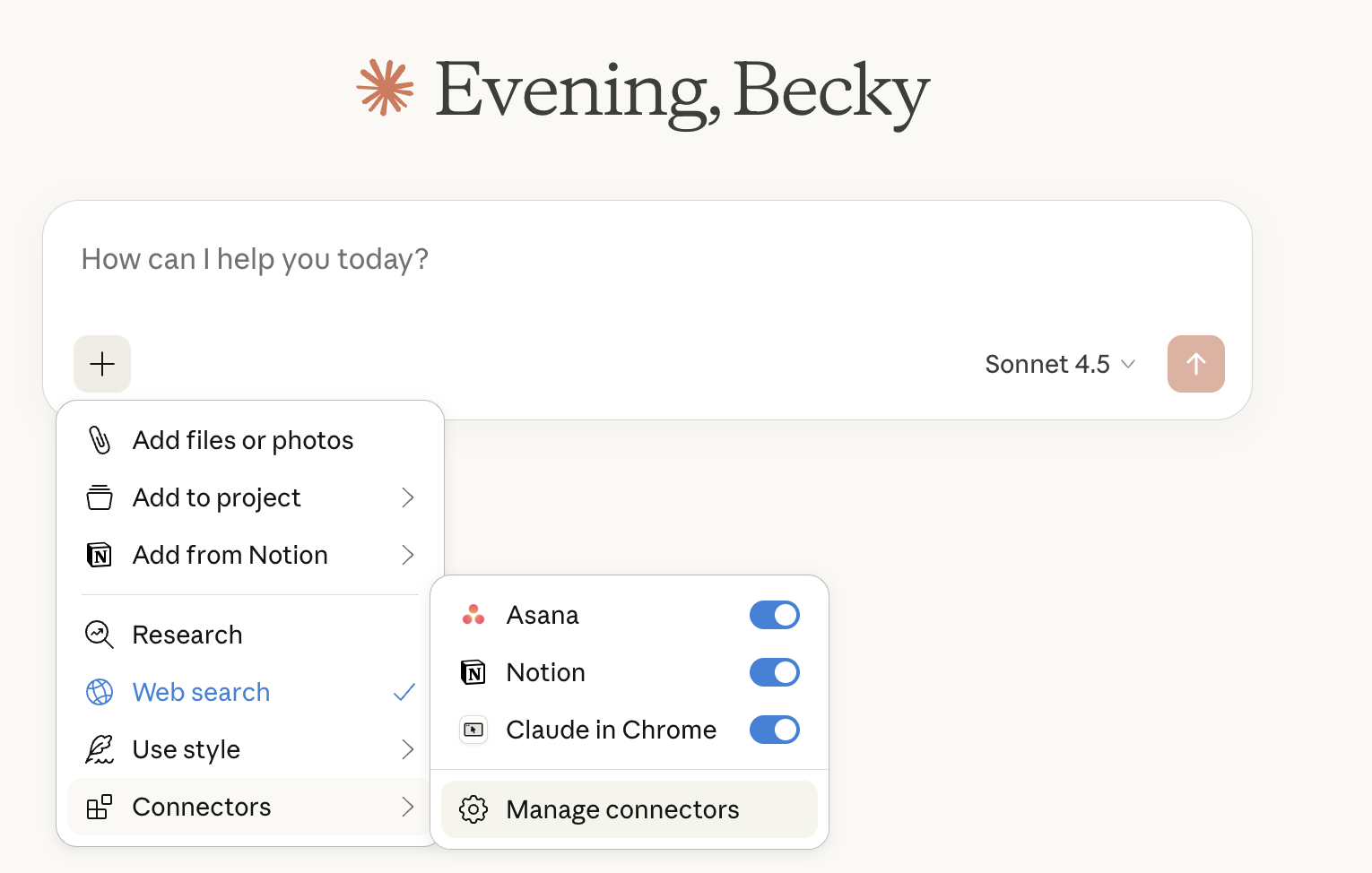
- Step 3: Click Browse Connectors → Add Custom Connection
- Step 4: Paste the Asana MCP server URL and give it a name
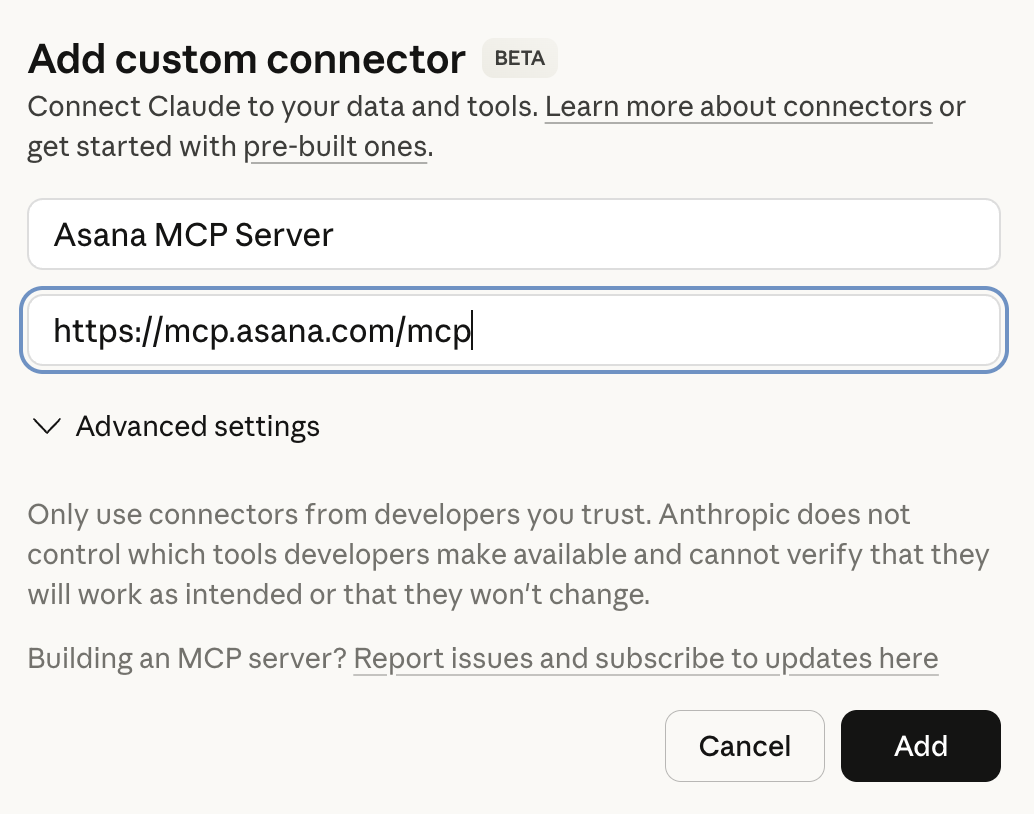
- Step 5: Authenticate with your Asana account when prompted
That’s it. Asana will now be available as a connector in Claude.
When to use this method: Solo developers, personal projects, or quick testing.
Method 2: Use Claude’s Built-In Connector Library
Claude Desktop maintains a library of pre-configured MCP servers, including Asana.
- Step 1: Click Connectors in Claude Desktop
- Step 2: Click Browse Connectors
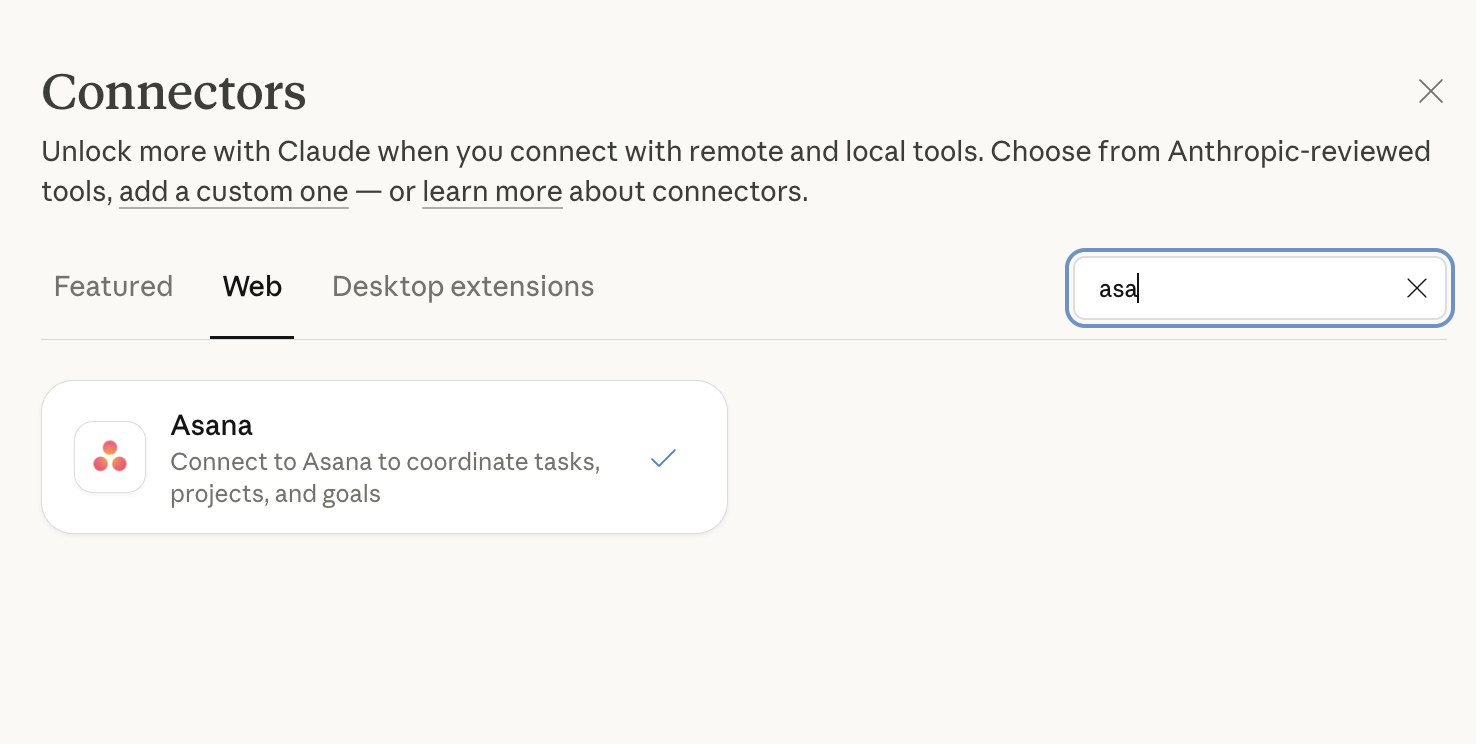
- Step 3: Search for “Asana” in the connector library
- Step 4: Click Add to Team (or Connect for personal use)
- Step 5: Complete the OAuth authentication flow
This method is slightly easier since you don’t need to find the server URL yourself. However, like Method 1, it still creates a direct connection between Claude and Asana without any governance layer.
When to use this method: Similar to option 1, this method is best if you are the only one on your team using Asana’s MCP server and/or not rolling out MCP usage across your team
Method 3: Connect via MCP Gateway (Most Secure)
If you’re rolling out MCP at scale or if your company needs security controls and visibility, you should use an MCP gateway.
What is an MCP Gateway?
An MCP gateway sits between your AI tools and your enterprise systems, acting as a secure control layer. Instead of creating direct connections to every tool, you route everything through a central gateway that provides:
- Centralized access management – Control which teams can use which servers
- Audit logs – End-to-end observability of what data moves where
- PII detection – Automatically block sensitive information from reaching AI models
- Rate limiting – Prevent API overuse
- Team-based permissions – Assign different access levels to different groups
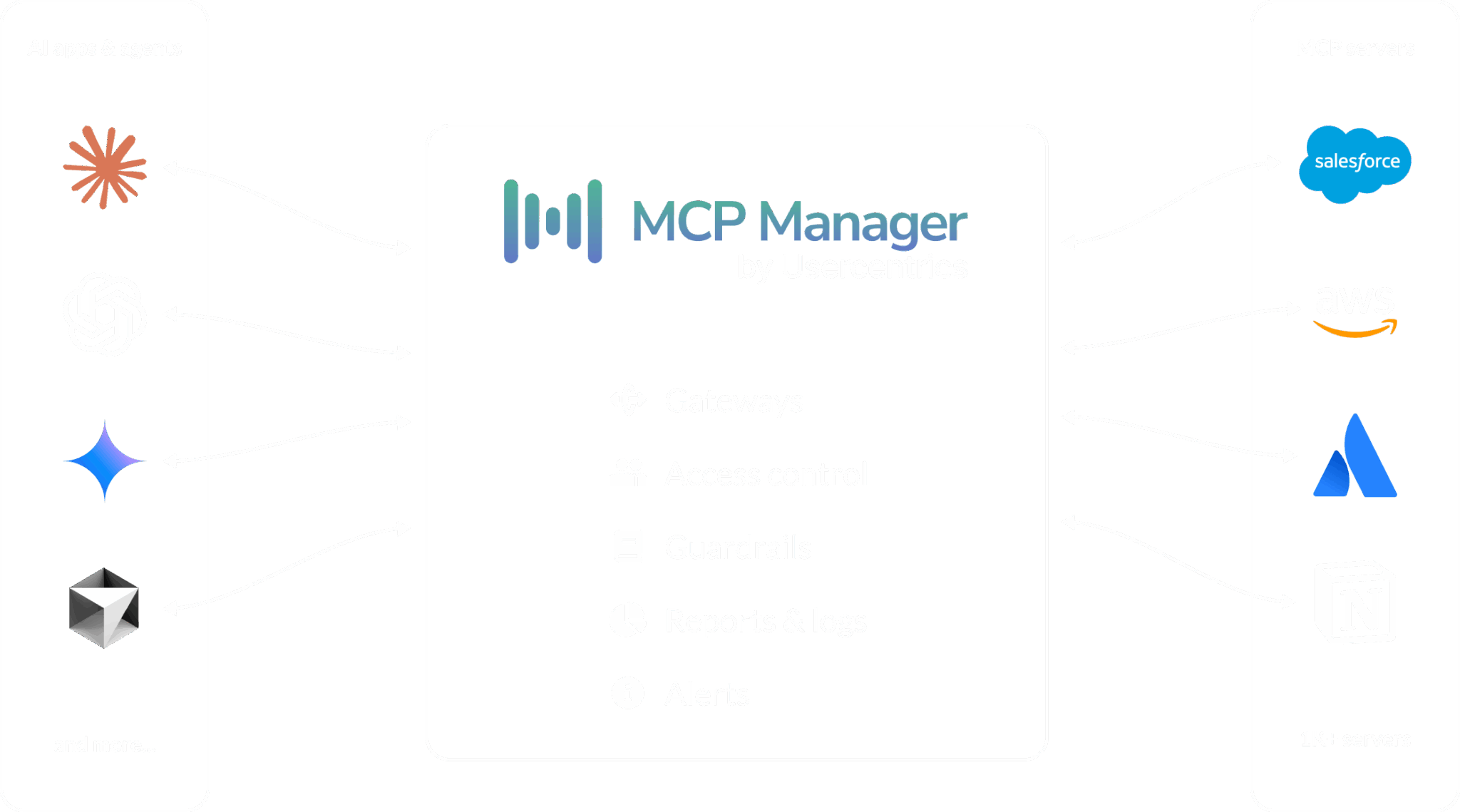
Without a gateway, ungoverned MCP servers create a tangled web of connections where companies have zero oversight into what data is being sent to what AI systems. For teams launching MCP at scale, this quickly becomes a security and compliance liability.
How to Set Up Asana via MCP Gateway:
I’ll demonstrate using MCP Manager by Usercentrics, which offers a free 2-week trial.
- Step 1: Log into your MCP gateway (e.g., mcpmanager.ai)
- Step 2: Navigate to the Gateways section
- Step 3: Click Create New Gateway
- Step 4: Name your gateway (e.g., “Marketing Team Gateway”)
- Step 5: Add the Asana MCP server by pasting its URL:
https://mcp.asana.com/mcp - Step 6: Complete the OAuth flow to authenticate with Asana. This associates your identity with the connection, improving auditability.
- Step 7 (Optional): Add additional MCP servers to the same gateway. You can also decide what tools you want your server to allow AI to have access to and other policies and controls.
- Step 8: Assign team-based permissions. Decide which teams (e.g., Marketing, Engineering) should have access to this gateway.
- Step 9: Copy the gateway URL from MCP Manager into your MCP client (e.g., Claude)
- Step 10: In Claude Desktop, go to Connectors → Add Custom Connection
- Step 11: Paste your gateway URL and name it (e.g., “Marketing’s MCP Gateway”)
Now when you use Claude, you’ll have access to all the MCP servers in your gateway with full security controls and audit trails.
You can also see all of these steps (and even more features) in this 2-minute video:
When to use this method: Teams and enterprises that need governance, security, and compliance for MCP deployments.
Real-World Use Case: Cross-Tool Workflow with Asana and Notion
Once you have Asana connected (via any of the three methods above), here’s what you can actually do with it.
In this example, I connected both Asana and Notion through an MCP gateway. Then I asked Claude: “Review my Notion notebooks about SEO strategy and find related Asana tasks.”
Here’s what happened:
- Claude searched Notion for documentation related to SEO content and blog posts
- Claude queried Asana for tasks tagged with SEO, content, or blog-related keywords
- Claude synthesized the results, providing a comprehensive summary of SEO strategy tasks across both tools
I didn’t have to switch tabs, copy task IDs, or manually cross-reference anything. Claude handled it all in one conversation.
Other workflows you could automate with Asana’s MCP server::
- “Create Asana subtasks for each action item in this Notion doc”
- “Find all overdue Asana tasks assigned to the marketing team”
- “Generate a Gantt chart from our Q1 roadmap in Asana”
- “Assign the top 3 high-priority tasks to Sarah”
Because MCP gives AI both read and write access to your tools, Claude can not only retrieve information but also take action, creating tasks, updating statuses, reassigning work, and more.
Key Takeaways about Asana’s Remote MCP Server
- Asana’s V1 MCP server is deprecated and will be unavailable after May 11, 2026
- V2 uses streamable HTTP, which is faster, more reliable, and the new standard for remote MCP servers. Make sure you use this one.
- You can connect Asana to Claude via direct URL, Claude’s connector library, or an MCP gateway
- MCP gateways provide essential security and MCP governance for teams that want to securely deploy MCP at scale
- Once connected, you can use Claude to read, write, and automate workflows across Asana and other tools
Ready to try Asana’s V2 MCP server? You can connect it directly in Claude Desktop today, or explore MCP Manager’s gateway for a more secure, enterprise-ready setup. We offer a free 2-week trial available).